

The router is a key component of your home network, which distributes internet to all your devices via Wi-Fi or Ethernet. An up-to-date router ensures a reliable and secure connection and maintains optimum network performance.
When your Wi-Fi starts acting up or speeds slow down, it might be time to replace an old router. Ideally, the router should be upgraded every 3-5 years. How long have you had your current router?

Do you rent your router from your internet provider or use your own?
Know the Pros & Cons of Renting vs. Buying Internet Equipment
Once you’ve ruled out other possible issues with the internet, look out for these seven signs that indicate a new router is needed:
1. Slow Internet Speeds Despite a High-Speed Plan
Did you recently upgrade your internet plan, yet notice no improvement in speeds and overall performance? Chances are that your old router isn’t compatible with the higher-tier plan, so you’ll need a new one that comes with matching capabilities.
How Your Router Affects Internet Performance
Outdated routers bottleneck fast internet plans, as they lack the capacity to support high speeds. For instance, if you were previously subscribed to a 300 Mbps internet plan and then switched to a gigabit plan, you’ll need a more advanced router to experience the upgraded speeds.
Modern routers are equipped with the latest , which enable a higher speed threshold and better coverage. Check your router’s Wi-Fi technology and your actual internet speeds to determine if they are a match.
Find out if your internet service provider (ISP) is delivering the speeds you pay for.

2. Frequent Disconnections or Dropouts
Old and faulty routers struggle to maintain a stable connection, which results in frequent disconnections. You may have to restart the router again and again to restore connectivity, which may interrupt your online activities and become a nuisance.
Common Reasons Routers Disconnect
Aging hardware, outdated firmware, and overcrowded networks are often responsible for recurrent connection drops. Even if your router is relatively new, you need to regularly install firmware updates to maintain peak performance.
In case of fluctuating Wi-Fi, repositioning the router may help eliminate signal interference and achieve a stable connection. Moreover, issues with the modem or power supply can also lead to repeated disconnections.
3. Router is Over 5 Years Old
Five years is officially the limit for holding on to a router. If you’ve had your current router for longer and believe it’s still going strong, your assumptions are probably wrong. Many old routers cannot fully support new or cutting-edge devices, which results in poor internet performance.
Why Age Matters
Even though age is just a number, the average lifespan of consumer routers is only between 3 – 5 years on average. Tech upgrades are necessary to accommodate growing internet demands that arise from smarter devices and more complex applications.
If you’re still using a Wi-Fi 5 router, it is recommended to upgrade to Wi-Fi 6 for faster speeds and better range. Many old routers no longer receive firmware updates, which makes them more susceptible to cyberattacks and raises security concerns.
Already looking at new routers to upgrade your home network?
How about some advice to help you out with the task? Check Out:

4. Poor Wi-Fi Coverage or Dead Zones
Wi-Fi signals get weaker as you move further away from the router. However, if the speeds get too slow in multiple parts of the house or you experience dead zones, it’s high time to replace your router with one that can offer better coverage.
How to Identify Dead Zones
The easiest way to identify Wi-Fi dead zones around your household is to check Wi-Fi bars in different rooms. Most devices show 4-5 signal bars at one of the corners of the screen; the connection remains stable and fast, as long as you can see three or more bars.
At times, the router perfectly complements the chosen internet plan, but connectivity issues still arise if the house is too big (too many square kilometers/multiple stories). Under these circumstances, you’ll need to invest in additional equipment to extend Wi-Fi range.

Tired of signal drops and dead zones?
Install Wi-Fi extenders or consider a mesh Wi-Fi system for seamless connectivity in every part of the house.
5. Devices Fail to Connect or Keep Dropping
Outdated routers and modern devices don’t connect due to compatibility issues. If your router was manufactured more than five years ago, it’s not surprising that it lacks the latest protocols to support new gadgets and smart devices.
Compatibility Issues with Modern Devices
The abundance of advanced smart home devices, gaming consoles, streaming devices, and similar appliances has significantly raised bandwidth and speed needs. Many older models of routers cannot support this many devices simultaneously.
Modern routers come with multiple frequency bands to accommodate a wider range of devices without compromising on performance. Older routers that rely on a single frequency band are prone to network congestion and often fail to connect with certain devices.
6. Router Overheats or Shows Warning Lights
When you touch your router, and it feels like it’s fresh out of the oven, it is, in fact, telling you to put it out of its misery. A warm router is normal, but if it’s hot enough to boil milk, it’s clearly a warning sign. The heat will eventually burn the poor thing, and then you’ll be left with a corpse of a router.
Signs of Hardware Failure
Routers show strange symptoms when their hardware is failing. Common signs include heating up, blinking lights, and strange noises. The router’s performance will naturally suffer when its hardware is exhausted, so replacement before total breakdown is recommended.
In case you’re renting the router from your internet provider, you should report hardware issues to their customer support team immediately. Your provider may send in a technician to repair or replace your router free of charge.

Are you using Xfinity Internet with your own equipment?
If yes, make sure you select a router that is compatible with the service.
7. Outdated Security Features
A router that stops receiving firmware updates is officially outdated and vulnerable to cyberthreats. Firmware updates are meant to improve the router’s performance, get rid of security risks, and add new features.
Risks of Using an Old Router
Old routers that no longer get security updates are susceptible to hacking and malware/virus infections. This means it’s easier to break into your private network and access sensitive information on your devices. The lack of security patches increases the risk of data breaches and Wi-Fi theft.
When looking for a new router, choose one that actively receives firmware updates. Additionally, prefer going with a router that comes with , as it offers the highest level of safety for your home network.
Why settle for a traditional router when you can get your hands on the almighty Xfinity xFi gateway?
This modern modem-router combo offers powerful Wi-Fi technology and advanced security features!

Tips to Choose the Right Router for Your Home
Now, if you agree that it’s time to say goodbye to your old router, here’s what you need to keep in mind when picking a replacement:
- Browse routers that complement your internet speed; select one that can easily support the maximum speeds offered by your internet plan.
- Get a router that doesn’t disrupt your budget; you don’t need an expensive high-end router for basic internet usage or internet speeds below 300 Mbps.
- Prefer routers with the latest Wi-Fi and security standards for future-proofing.
- Check for multiple LAN ports if you want an expansive wired network for high-bandwidth activities like online gaming.
- Dual-band routers are great for most households, whereas tri-band routers are recommended for large and well-connected smart homes with cutting-edge devices.
- Choose a router that comes with easy app-based management and built-in security features, such as parental controls.
Recommended Routers for Home Internet
TP-Link Archer BE3600
(Best Budget Pick)
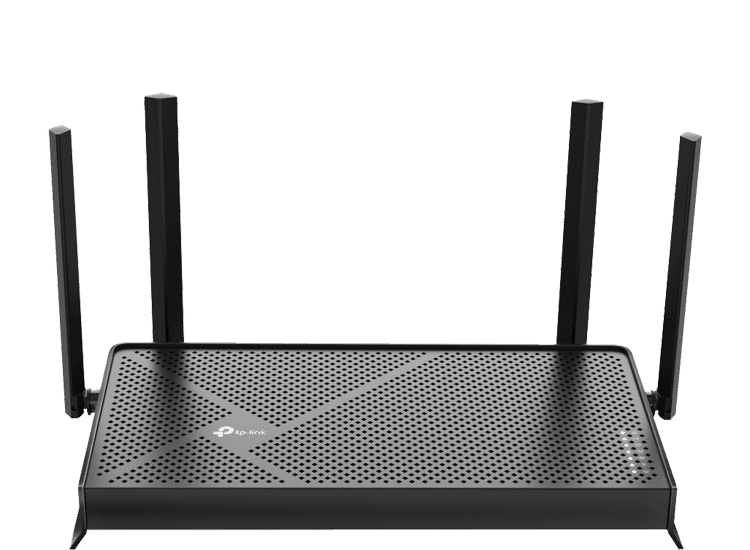
- Dual-Band
- Wi-Fi 7 technology
- Supports multi-gig speeds
- Coverage up to 2,000 sq. ft.
- Connects up to 60 devices
- Includes network security software + parental controls
TP-Link AXE5400
(Best Overall)
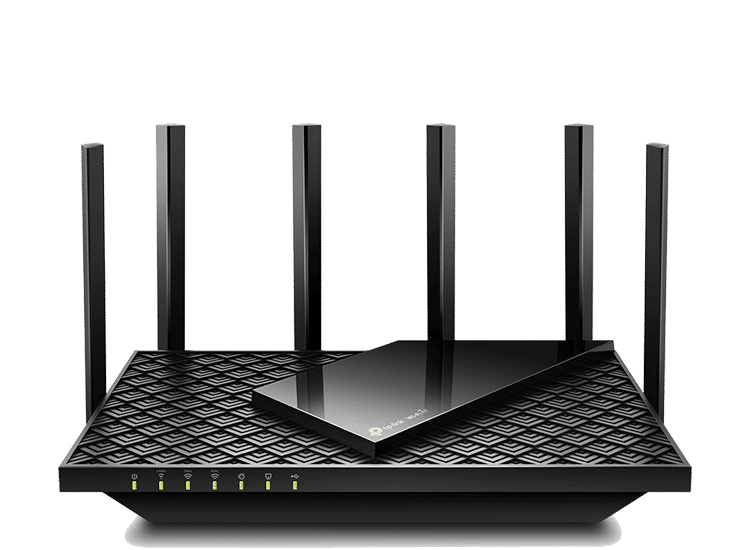
- Tri-Band Wi-Fi 6E Router
- Delivers up to 5400 Mbps speed on Wi-Fi
- Mesh ready
- Built-in premium security software
- Compatible with all ISPs
TP-Link Archer GE650
(Premium Gaming Router)
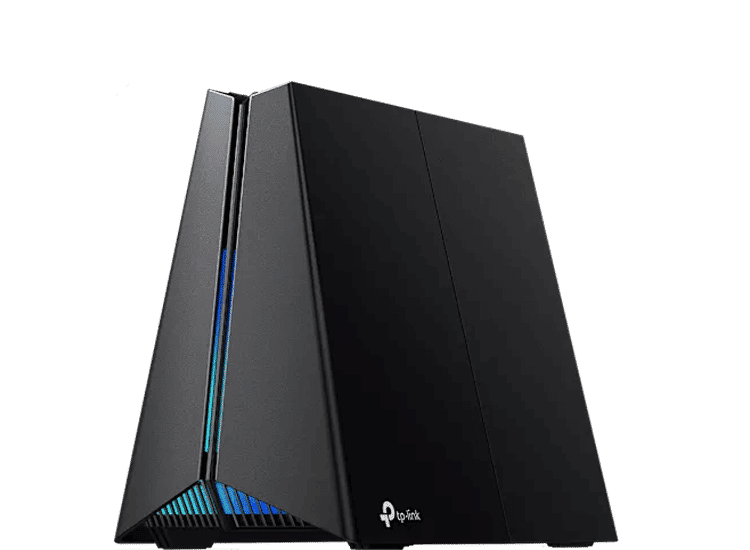
- Tri-Band Wi-Fi 7 Router
- Multi-gigabit ports
- Dedicated game panel
- Exclusive game acceleration feature
- Cool design with RBG lighting
FAQs
What is the average lifespan of a router?
The average router lasts between 3-5 years; hence, if your router is older than five years, consider replacing it soon.
How much does a good router cost?
A good router that works for most households can be bought for around $100 - $200 on average.
Should I get a Wi-Fi 7 router?
A Wi-Fi 7 router is worth buying if you’re subscribed to a gigabit/multi-gigabit internet plan and require lag-free internet for competitive gaming.


