

Life tends to disconnect when you encounter poor or no Wi-Fi signals.
Even when you’re receiving fast and high-quality internet from your provider, low Wi-Fi signal strength can ruin your online experience.
Today, we’ll explain what Wi-Fi signal strength actually is, how it affects your internet’s performance, how to read it, and finally, ways to optimize it.

Unsure about your home network’s Wi-Fi coverage?
Run a quick home signal assessment with our:
What Is Wi-Fi Signal Strength?
Wi-Fi signal strength refers to the quality, stability, and reliability of your wireless home network connection. Your internet router sends out signals via radio waves to create a localized Wi-Fi network. The farther away you are from the router, the weaker the signals become.
Difference Between Wi-Fi Speed and Signal Strength
Your Wi-Fi speed refers to how quickly your internet connection transfers data, including both download and upload speeds. On the other hand, Wi-Fi signal strength represents how strong the connection is. All things considered, maximum Wi-Fi signal strength can guarantee better speeds, but not always.
To be clear, if you’re receiving slower speeds from your internet service provider (ISP), strong Wi-Fi signals won’t help improve them.
Wi-Fi Signal Bars vs. dBm
Wi-Fi signal bars are a simplified visual presentation of connection quality, whereas decibel-milliwatts (dBm) is a precise unit of measurement for signal strength.
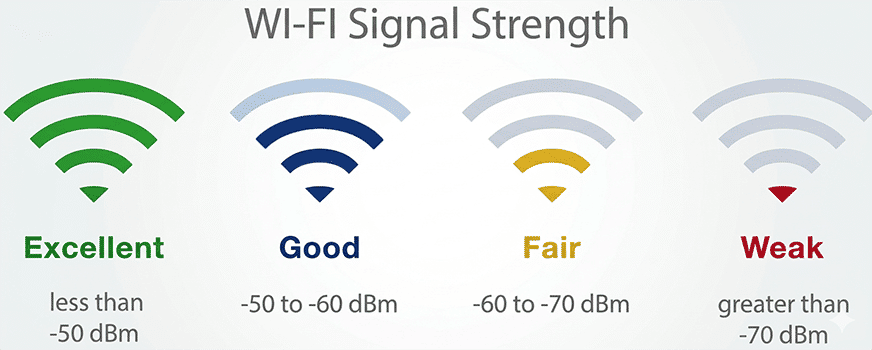
Most devices display 4-5 Wi-Fi bars; the connection quality is good as long as you can see three or more bars. Signal strength measured in dBm is displayed as a negative number, typically between -30 to -90 dBm.
-30 dBm represents perfect signal strength, which is rare to see in real-world conditions. Signal strength down to -60 allows decent connectivity; it gets worse below that, and you won’t be able to connect to the internet by the time it reaches -90 dBm.
Correct placement of your Wi-Fi router helps improve signal strength and overall performance.

Why Wi-Fi Signal Strength Matters
Poor Wi-Fi signal strength can significantly impact the internet’s performance and deteriorate user experience – here’s why:
1. Connection Stability
A strong Wi-Fi signal ensures a stable and steady connection, whereas a poor signal often results in recurring disconnections. When you’re not seeing enough bars on your device, it may have to reconnect again and again, forcing you to restart applications or lose unsaved progress.
2. Speed & Latency
While your provider delivers the speeds assigned to your internet plan, a low Wi-Fi signal strength becomes a hurdle. Weak connectivity delays data transfer, resulting in slowed speeds and increased latency.
3. Coverage & Interference
Wi-Fi coverage depends upon the capacity and placement of your router. Too much distance from the router and signal interference from physical barriers (thick walls, bulky furniture, etc.) or electronics may create Wi-Fi dead zones around the house.
4. Device Experience
When Wi-Fi signal strength is below three bars or -60 dBm, here’s how your regular online activities will be affected:
- Frequent video buffering while you’re streaming your favorite show or a movie
- Interrupted gameplay/delayed actions due to lag and increased latency
- Screen freezing, patchy audio, and distorted graphics during Zoom/video calls
Seeing all bars, yet the Wi-Fi feels slow?
Find out what’s affecting your Wi-Fi’s performance

How to Check Wi-Fi Signal
Most devices show Wi-Fi signal bars at one of the top or bottom corners of the screen. However, to obtain an exact value in dBm and deeper insights, you may apply the following methods:
1. On Windows
Built-In Network Settings
- Open Command Prompt
- Type “netsh wlan show interfaces”
- You’ll see a signal strength percentage along with other details
External Wi-Fi Analyzer Tools
- Download an application to measure your Wi-Fi signal strength, such as NetSpot or WiFi Analyzer
- Launch the app and connect to the network you wish to check
- Navigate the app to get a dBm reading
2. On Mac
Built-in Wireless Diagnostics
- Close all open apps and connect to the Wi-Fi network you want to check
- Press and hold the Option key
- Click on the Wi-Fi icon in the menu bar
- Follow onscreen instructions to view dBm and related other details
Using Terminal for dBm
- Open the airport command line tool
- Run “sudo /System/Library/PrivateFrameworks/Apple80211.framework/Versions/Current/Resources/airport -I”
- See detailed info
3. On Android & iPhone
For Android Devices
- Go to Google Play Store and download the WiFi Analyzer app (or any other third-party app)
- Connect to the Wi-Fi network you want to check
- Run the test by following the steps given in the app
For iPhones
- Install the AirPort Utility app from the Apple App Store
- Tap Settings on your phone and select AirPort Utility
- Toggle on Wi-Fi Scanner
- Go to the app and tap Wi-Fi Scan to see a list of networks and their signal strength in dBm.
Test Wi-Fi Signal Strength — Best Tools & Apps
Using third-party tools or apps is convenient for measuring Wi-Fi Signal strength and identifying weak points in your home network. According to CBTnuggests, some of the best options include:
- Wireshark – best for general network analysis and troubleshooting
- Kismet – works with multiple operating systems, including Windows, Mac, and Linux
- Acrylic Wi-Fi Heatmaps – a professional tool for Wi-Fi planning
- Wi-Fi Analyzer Tool – offers comprehensive information through real-time analysis of Wi-Fi networks
- Channelizer 6 – recommended for network analysis of complex environments
- NetSpot – the most user-friendly app for Wi-Fi survey and troubleshooting

Tired of slow internet speeds?
Thinking of switching to another service?
What Affects Wi-Fi Signal Strength & How to Improve It
Factors that Affect Wi-Fi Signal Strength
Router Location: Placing the router in cramped or enclosed spaces limits signal reach. Proximity to thick walls or bulky furniture may entirely block signals.
Signal Interference: Electronics and secondary Wi-Fi devices nearby may disrupt signals due to electromagnetic interference.
Outdated Hardware: Poor Wi-Fi performance is often related to compatibility issues. An old router’s capacity may not support a high-tier internet plan
Network Overload: Too many devices connected to the Wi-Fi network simultaneously result in poor performance.
Distance: Wi-Fi signal strength decreases as you move further away from the router. For this reason, remote parts of a home, such as a garage or outside shed, receive the weakest signals.
How to Improve Wi-Fi Signal Strength
Router Router: Move your router to a central open space in the house. Reposition to an elevated spot to maximize Wi-Fi coverage
Reduce Interference: Keep your Wi-Fi router away from all sorts of electronics, including microwave ovens, baby monitors, and Bluetooth devices.
Upgrade Hardware: Routers must be replaced every 3-5 years, especially when you upgrade your internet plan.
Change Wi-Fi Channel: Switch to a faster or less congested Wi-Fi channel to improve signal strength and speeds.
Extend Wi-Fi Coverage: You can install Wi-Fi boosters/extenders to improve reach in far-off rooms. A mesh Wi-Fi system is recommended for full coverage and uniform connectivity in large households.
You can improve Wi-Fi coverage and signal strength with the right equipment.
Wi-Fi Extender vs. Wi-Fi Booster vs. Mesh Wi-Fi: Which One Do You Need?

Summary: Wi-Fi Signal Strength Chart & Benchmarks
| Wi-Fi Signal Strength (dBm) | Performance | Best Use Case |
|---|---|---|
| -30 to -50 | Excellent | HD Streaming & Gaming |
| -50 to -60 | Good | Voice calls, standard streaming, social media scrolling |
| -60 to -70 | Fair | Emails, light browsing |
| -70 to -90 | Poor | None - connection drops/complete disconnection |

When the Wi-Fi signal strength is strong, but the connection is slow, it’s time to change your internet plan.
FAQs
What is a good Wi-Fi signal strength?
Wi-Fi signal strength between -30 and -60 dBm is good for conducting most online activities without any issues.
Why is my Wi-Fi signal strength low in some rooms?
Rooms that are the furthest from the router, obstructed by heavy physical objects, or contain too many electronics are likely to have low Wi-Fi signal strength.
Does distance from the router matter?
Yes, the further you are from the router, the weaker the Wi-Fi signals are.
Can furniture block Wi-Fi signals?
Yes, big or bulky furniture may partially or entirely block Wi-Fi signals.
How often should I test Wi-Fi signal strength?
You may test Wi-Fi signal strength whenever your internet speed seems unusually slow.
How to measure Wi-Fi signal strength?
You can measure Wi-Fi signal strength in dBm using various third-party Wi-Fi analyzing apps.
How to increase Wi-Fi signal strength?
You can increase Wi-Fi signal strength on your device by moving closer to the router or using a Wi-Fi booster/extender.


