
Xfinity Remote: The Complete Guide to Models, Voice Control & Troubleshooting

Hey there, Xfinity fam! We know that your Xfinity remote control is basically the command center of your home entertainment setup. However, it can be really frustrating if you repeatedly struggle with pairing issues, voice commands ghosting you, and other features that fail to perform their job.
Today’s guide covers everything from setting up your Xfinity voice remote to troubleshooting common problems – so let’s dive right in!
Why the Xfinity Remote Matters (and What “Voice Remote” Means)
Calling the Xfinity remote an upgrade from a standard TV remote is probably the understatement of the century. The voice control feature in the Xfinity remote control opens a whole new world of possibilities.
Unlike old-school remotes, the Xfinity voice remote can do a lot more than flip channels and control the volume of your TV set. You can use voice commands to:
- Execute automatic pairing
- Quickly find your desired content
- Tune to channels
- Manage DVR functions
- Control accessibility features like audio descriptions and closed captioning
In summary, the advanced Xfinity remote control delivers faster search, better control, and extra convenience. Adding it to your home entertainment setup is the obvious choice.
Pair your remote control with an Xfinity Internet & TV bundle for the ultimate entertainment experience.
Xfinity Remote Models & Versions – Which One Do You Have?
Here’s an overview of popular models in the Xfinity voice remote services:
Xfinity Voice Remote Model (XR15)
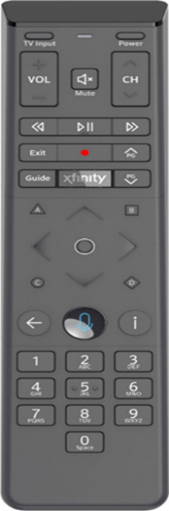
Features
- Fast response to voice commands
- Backlit keypad
- Aim Anywhere feature
- Easy setup/automatic pairing
- Accessibility features including closed captioning, video description, and voice guidance
- TV input control
- Consolidated power button
- Compatible with most TV sets + Xfinity X1, Xi6, Xi5, and XG2 TV equipment
Xfinity Voice Remote Model (XR11)
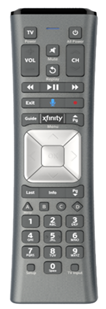
Features
- Designed for the Xfinity X1 platform
- Easy access to accessibility features
- Supports up to 3 devices at a time
- Backlit keypad
- Aim Anywhere feature
- Low power use
- Over-the-air firmware updates
- Universal remote control – works for all televisions
- Compatible with CATV, DVD Player, VCR, and audio systems
Xfinity Voice Remote Model(XR5)
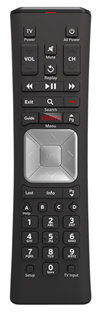
Features
- Ergonomic design
- Only supports one device at a time
- Compatible with Aim Anywhere receivers
- Radio Frequency (RF) for controlling the cable box, Infrared (IR) for controlling the TV
- Backlit buttons
- Simplified navigation buttons
- Integrates with all X1 TV boxes
- Can be programmed to work with other TVs and audio devices
Xfinity Voice Remote Model (XR100)
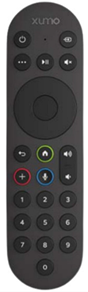
Features
- Primarily made for the Xumo Stream Box
- Numbered buttons for live TV search
- Separate “play” and “pause” buttons
- Plus (+) button for adding content to Xumo Stream Box profile
- Distinct rounded design
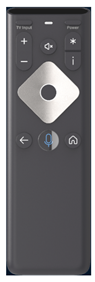
Xfinity Voice Remote Model(XR16)
Features
- Minimalistic design without number buttons
- Explicitly designed for Xfinity Flex streaming TV Boxes
- IR connectivity
- Wireless range up to 50 feet
If you lose or misplace your physical remote, you can use the Xfinity web remote to control TV functions. This tool can be accessed through a browser on your computer or mobile device; it does not work without an internet connection. The web remote works with X1 and Flex TV Boxes, with or without voice commands.
How to Pair & Set Up Your Xfinity Remote
The general procedure for pairing your Xfinity voice remote with your TV Box and TV is as follows:
- Point the remote at your TV Box
- Press the microphone button and say “program remote“
A notification appears when your remote is enabled for voice control.
- Afterwards, follow the instructions on the screen
- You’ll be asked if you want to use your remote to control your TV power and volume – select “yes”
- Select “OK” when you see ready to pair on the screen
- Test pairing by increasing and decreasing the TV volume
- If it works, select “It Works” and you’re done
- If it doesn’t work, you’ll have to try again from the start
To view programming guidelines for a specific Xfinity remote control model, visit this official remote support page .
A fast & reliable internet connection can solve numerous problems. For example, if the TV remote goes missing, you can connect to the home Wi-Fi network and use a mobile app instead.
Using Voice Commands & Advanced Features
Voice commands can be used for changing channels, finding shows or movies of a specific actor/genre, troubleshooting remote control problems, and even requesting recommendations.
Below are tips on how you can use voice commands with the Xfinity voice remote:
- To change or switch to another channel, simply say the channel name or number, for example:
- ABC
- Watch ABC Network
- Seven/7
- Watch channel 7
- Turn on the ABC channel
- To search for a TV show or movie, say the title in one of the following ways:
- The Avengers
- Find the Avengers
- Play the Avengers
- Watch the Avengers
- For sports-related searches, you can improvise with these commands:
- When is the Super Bowl?
- NBA finals
- What baseball games are on?
- Watch the MLS Playoffs
- To get content recommendations, try saying:
- Which horror movie should I watch?
- What shows are trending?
- What’s on at ten tonight?
- Show me series like the Squid Game
- To manage accessibility features, use commands like:
- Open accessibility home screen
- Accessibility settings
- Turn on/off closed captioning
- Turn on/off voice guidance
- Turn on/off audio description
- Find shows with audio description
- Accessibility help
- To control DVR functionality, use commands like:
- Record/pause/fast forward
- Go to my recordings
- Record all episodes of The Witcher
- What’s on my DVR?
You can use similar voice commands to control devices/services paired with your remote control and television setup. For instance, you can pull up feed from connected security cameras or launch a streaming app.
Lastly, you may troubleshoot TV issues using commands like “restart TV box”, “pair remote”, and “reset language”.
If you’re having trouble pairing/programming your Xfinity voice remote or experiencing other functionality glitches, you may refer to Xfinity remote troubleshooting resources or contact customer support.
In case your remote is broken, having compatibility issues, or malfunctioning, you may request for a replacement.
Frequently Asked Questions
Can I use any universal remote with Xfinity?
Some universal remotes may work with Xfinity boxes, but not all. Older remote control models that solely rely on IR are usually incompatible with modern Xfinity devices.
What do XR11/XR15/XR16 mean?
XR11, XR15, and XR16 are names/numbers for different models in the Xfinity voice remote series.
Does the remote support my smart TV and soundbar?
Yes, Xfinity remotes can be programmed to work with most smart TVs and sound bars.
Why did the Xfinity Remote app get removed?
There are no specific details regarding why the app was removed; however, the Xfinity Web Remote has been promoted as a new and improved alternative.
How can I reset the voice remote?
To reset your voice remote, you can go to settings and select a factory reset; you’ll need to re-pair the remote after that.
How do I get the large button voice remote for accessibility users?
You can contact the Xfinity Accessibility Support Center to request a large button voice remote. This remote is specially designed for X1 and Flex customers with vision impairment and similar disabilities.


