

Is your internet not working, or is it the Wi-Fi acting up again? The first thing to do under these circumstances is to check the modem and router lights.
The behavior of modem and router lights can reveal a lot about the status of your internet connection, but only if you understand their meaning. The different colors and solid vs. blinking lights help troubleshoot common network issues.

Is slow Wi-Fi bringing you down?
Read on for a complete explanation of varying modem and router lights, so you know exactly what’s gone wrong and how to make it right.
Modem and Router Lights Reference Table: Quick Overview
| Light Color | Status | What It Means |
|---|---|---|
| Green/White | Solid | Stable internet connection |
| Green/White | Slow blinking | Establishing a connection |
| Green/White | Fast blinking | Data transfer in progress |
| Red/Orange | Solid | No internet signal/hardware error/power failure |
| Red/Orange | Blinking | Weak connection or installing firmware updates |
| Blue/Purple | ____ | Active Bluetooth or WPS pairing mode (varies by manufacturer) |
| No Light | ____ | The device is turned off/no power supply |
What Do Modem Lights Mean?
The modem is the device that connects you to your internet service provider (ISP), so you may consider it a gateway to the World Wide Web. Understanding the lights displayed on the device helps you interpret the health of your internet connection and quickly pinpoint common setbacks.
Here’s a breakdown of the different types of lights you can see on the modem:
1. Power Light
The power light is usually placed at the top of the panel or at the front (for horizontal devices). It indicates whether the device is powered on or receiving electricity. It shines a solid white or green when the modem is turned on and doesn’t light up at all when powered off.
If you see no light even when the device is turned on, you must ensure that the power adapter is correctly plugged into an electric outlet. A frayed cable or faulty outlet can also cause no power supply.
2. WAN or Internet Light
Even when the modem is correctly powered up, it doesn’t guarantee a functioning network. Look for the light that is often represented by a globe or labeled “WAN,” which stands for Wide Area Network. This light provides confirmation of an active internet connection.
The WAN or internet light is solid green or white when the connection is stable or good to go. If the light turns red or orange, it means that your modem has failed to establish a connection with the ISP. This may happen during network outages or other issues at the provider’s end.
3. Downstream (DS) Light
The light labelled “DS” or represented by a downward arrow indicates data transfer from your ISP to your home network. A green or white light may blink slowly while a connection is being established with the internet provider; this happens when you turn on or reboot the device.
A solid green/white light means that the connection is stable and your network is capable of downloading data, and rapid blinking of the light means that data is actively being received. A red or orange light suggests a network error and that you’re not receiving data from the ISP.
4. Upstream (US) Light
The US light is typically represented by an upward arrow to indicate data transfer from your home network to the ISP. Similar to the DS light, slow blinking is noticeable when the modem is starting up and establishing a connection with the provider.
When the light is a solid green or white, it means your modem is ready to upload data, and rapid blinking means data transfer in progress. In case of a connectivity problem, sending data to the ISP may fail, so you’ll see a red or orange light.
5. Link Light
The link light on the modem is normally denoted by two segments chained together or dots connected with lines. It is similar to the “sharing” or “copy link” buttons on social media platforms. This light represents the Ethernet connection between your modem and router.
When the link light is white or green, you can rest assured that the internet connection is stable and operative. If the light is red or turned off, it means that there’s a problem with the Ethernet cable or one of the Ethernet ports on either device.
The best modems are the ones that seamlessly connect with your internet service and don’t cost you extra.
Check Out:
Top Internet Providers with Free Installation and Modem Offers

What Do Router Lights Mean?
While the modem primarily connects you to the ISP, the router creates your home network by distributing incoming signals via Wi-Fi or Ethernet. While the modem shows the state of connectivity between your home and the internet provider, the router represents the status of your home network.
The router, too, has a power and internet/WAN light that serves the same purpose as a modem. Additionally, you should get acquainted with the following lights:
1. Wi-Fi or WLAN Light
The Wi-Fi or Wireless Local Area Network (WLAN) light shows the status of your home’s wireless network; it is normally represented as a Wi-Fi icon visible on your devices (3-5 straight or curved signal bars). Some dual-band and tri-band routers have multiple Wi-Fi lights corresponding to different Wi-Fi bands (2.4 GHz, 5 GHz, and 6 GHz).
Solid white or green light means that the Wi-Fi network is operative; if the lights are blinking, this indicates that data transfer over Wi-Fi is in progress. Furthermore, no light means that Wi-Fi is turned off, whereas red/orange light suggests that there is no internet access.
2. Ethernet or LAN Light
Similar to Wi-Fi lights, your router can have multiple Ethernet or Local Area Network (LAN) lights, which show the status of a wired connection. These lights correspond to the Ethernet ports of the router and remain off unless a device is plugged in via an Ethernet cable.
A solid green/white light indicates that a connection has been established, and blinking lights mean that data transfer is in progress. There is no light if the Ethernet cable is faulty or the port isn’t functioning; a red/orange light may suggest a poor connection.
3. WPS Light
The Wi-Fi Protected Setup (WPS) light corresponds to the WPS feature of the router. This feature can be turned on when you want to connect a new device to your home network without entering the Wi-Fi password; the feature is convenient but not recommended, as it can pose security risks.
When you turn on the WPS feature, you can see a blinking blue or purple light; this indicates an active device pairing mode. The light will go out as soon as you turn off the WPS mode.
Modem vs. Router Lights: Side-by-Side Comparison
Your modem and router work together to establish a secure home network, which allows you to use the internet on multiple devices simultaneously.
Here’s a side-by-side comparison of lights displayed on both devices and what they mean:
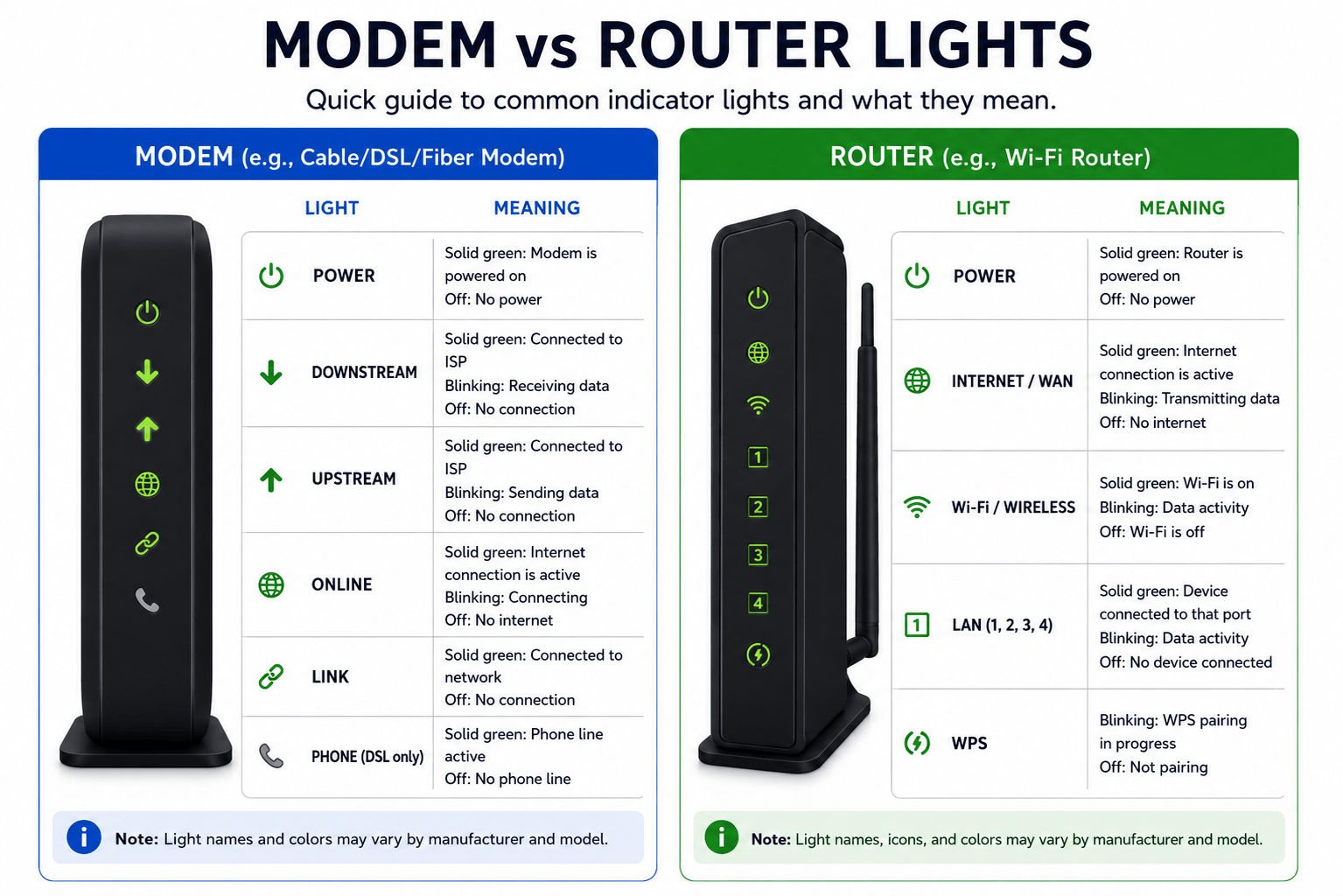
P.S. Many ISPs offer gateway devices, which are modem and router combos. Instead of two separate devices, you get all features and functionalities in one. If you’re using a gateway device, you’ll see a combination of modem and router lights together.
Comparing Modem and Router Lights by Brand
Modems and routers (or gateways) offered by different ISPs vary in design and features. Even if you’re using your own equipment, the specifics depend on the manufacturer.
Here’s how the lights of modems and routers from top-rated brands differ by light colors and behaviors:
| ISP/Manufacturer | Light Status when Everything is Working Fine | Light Status during Connectivity/Network Issues |
|---|---|---|
| Xfinity | White (solid) | Red/Amber (blinking) |
| AT&T | Green (solid) | Red (solid or blinking) |
| Cox | White (solid) and Green/Amber (blinking) | Red (solid) |
| Spectrum | Blue (solid) | Blue/White (blinking) |
| Netgear | Green or White (solid) | Amber/Orange (solid) |
| TP-Link | Green (solid or blinking) | Red (solid or blinking) |
| Eero | White (solid) | Red (solid) |
| ASUS | White (solid) | Red (blinking) |
P.S. Modems and routers from the same brand are not necessarily the same. Designs and layouts may change over time, so light colors/behaviors in older and newer models can be different.

Using your internet provider’s equipment is often recommended as it prevents compatibility issues.
On the other hand, buying your own equipment can save you money and offer more customization.
Modem and Router Troubleshooting Guide
Whether you cannot connect to the internet or the Wi-Fi is unusually slow, you must check the lights on your modem and router to figure out what’s up. Here’s what you can do to fix the problem, depending on the status of the lights:
No Light
⚫- Check that your devices and power supply are switched on/working
- Identify damaged/frayed wire or cable
- Make sure the power adapter is plugged into the electricity outlet
- Check the Ethernet cables and ports
- Replace faulty equipment
Red/Orange Light (Solid or Blinking)
🔴- Restart your modem and router and wait a few minutes
- Check that all wires and cables are intact if the problem persists
- Contact your ISP and ask if there is an internet outage in your area/request assistance
Blinking White, Green, or Blue Light
🔵- If slow blinking, wait for a couple of minutes to allow the modem and router to install updates or re-establish a connection
- Fast blinking means data is actively being sent/received, which is normal
- Turn off WPS mode if the blue/purple WPS light is blinking but not in use
Final Thoughts: What do the Modem and Router Lights Say?
Once you learn how your internet modem and router work and what their lights mean, you can avoid wasting time on endless calls to your ISP’s customer support team and the headache that accompanies them.
You can quickly identify common connectivity and network issues that can be solved without technical assistance. Even if the problem cannot be solved at your end, you understand what’s wrong, and that makes life a lot less stressful.
Stuck with slow internet even though your modem and router are working fine?
Run a FREE Speed Test to find out if your ISP is ruining your vibe!

FAQs
What does the green blinking light on my modem mean?
A blinking green light usually means that the modem is actively sending or receiving data.
What should I do if my router light is blinking red?
The first thing you should do is restart your internet modem and router, and then wait for a few minutes for the devices to re-establish an internet connection. If the problem persists, call your internet provider’s helpline for assistance.
Does a solid red light on my modem mean that it’s broken?
While a solid red light can indicate a hardware failure, that is not always the case. The red light may represent connectivity issues from the provider’s side, so you must contact them and inquire about a service outage in your area.
Can I change the brightness of the lights on my modem and router?
Yes, many modems and routers let you adjust the brightness of LED lights manually or through settings on a companion mobile app.


