
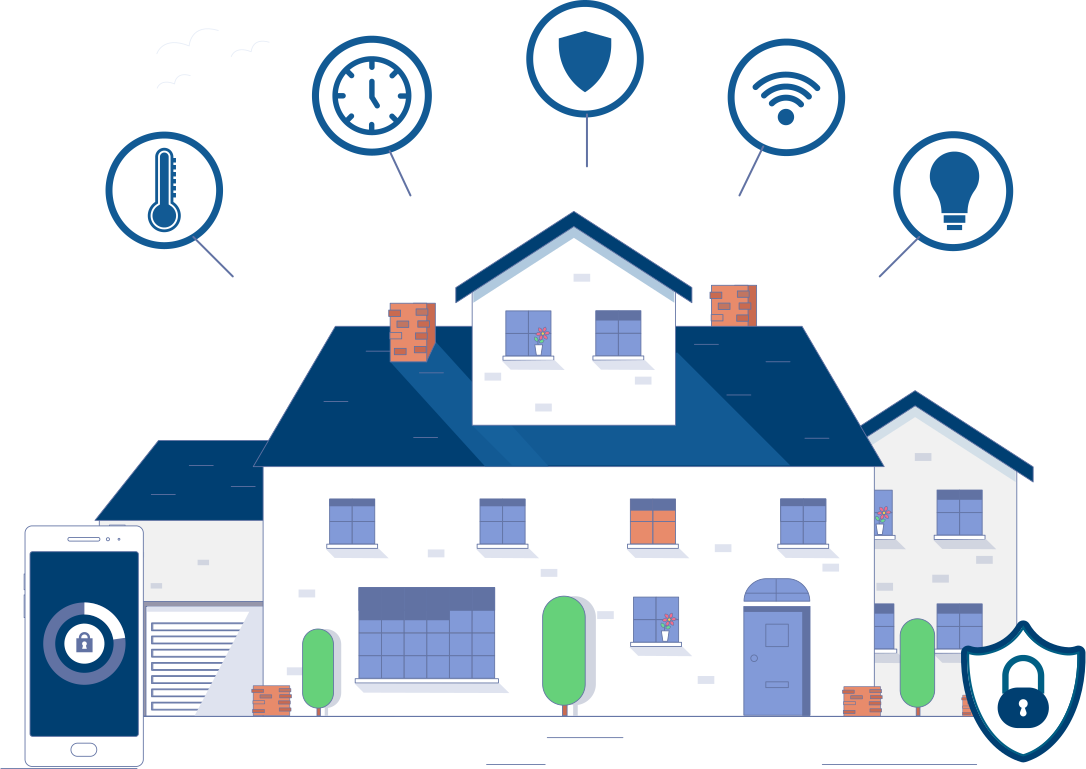
When people think of cybersecurity, the first thing that comes to mind is installing antivirus software. The problem is that antivirus protects only one device and a small part of your online experience. The rest of them are sitting ducks if your home Wi-Fi network is insecure.
The good news is that securing your home Wi-Fi network isn’t as technical as you’re probably thinking it is. It’s a matter of a few basic steps that take just a few minutes, but go a long way in adding multiple security layers to your network.
What better way to welcome Cybersecurity Awareness Month than with a deep dive into why and how you can set up internet security at home?
Cybersecurity Awareness Month Chapter 1: Why Your Home Wi-Fi Is at Risk
Being aware of all the potential vulnerabilities of your home internet and how cybercriminals can exploit them will give you a better idea of the risk you’re exposed to.
Most importantly, these vulnerabilities include:
- Weak Passwords
- Outdated Router Firmware
- Unencrypted Network
- Misconfigured Guest Network
- Insecure IoT Devices
Let’s take a look at what they mean and how cybercriminals can use them to gain access to your devices and information.
Weak Passwords
The default “admin” password on your router is an easy access point for hackers since it is easy to crack. Hackers often use online lists to find provider-specific passwords. Once your router is breached, all your devices are at risk.
Outdated Router Firmware
Older routers with outdated firmware are more prone to being attacked since hackers may already be using sophisticated methods to bypass standard security protocols.
Unencrypted Network
Encryption is the security measure that scrambles the data sent over your Wi-Fi network. Without encryption, all your data can be easily intercepted and exploited by cybercriminals for financial gain. They can even gain access to your network to use it for illegal activities.
Misconfigured Guest Network
Guest networks are segments of your internet connection that visitors can connect to. A guest network that is not properly isolated from your primary network or doesn’t have proper security acts as a potential entry point to your devices.
Insecure IoT Devices
Some budget smart home devices, such as cameras or locks, may provide digital monitoring and entry into your home. That’s because they compromise on advanced security features to focus on cost-effectiveness and ease of setup.
The threats from each of these vulnerabilities can be significantly reduced with certain basic measures. Let’s explore a step-by-step breakdown of how you can secure your home Wi-Fi network.
Cybersecurity Awareness Month Chapter 2: Steps to Secure Your Home Wi-Fi
Each of the steps below acts as an additional security layer to your home Wi-Fi network, potentially protecting you from financial or emotional exploitation.
Some are basic and instantly actionable, while some are a bit more advanced and may take you a few minutes.
⚡ Quick Fixes
- Setting stronger router and device passwords
- Updating router firmware
- Enabling wireless network encryption
⚙️ Advanced Measures
- Enabling the firewall
- Enabling MAC address filtering
- Using a virtual private network (VPN)
- Disabling remote admin
Here’s how you can execute each of these steps, starting with the quick fixes.
Set a Stronger Router Password
Starting with your router, change the default admin password to something personal that only you would know. Try to keep it long and random, and update it every 3 months. Don't make it easy on them!
Update Router Firmware
If your router was supplied by your Internet Service Provider (ISP), it will automatically install updates once your provider pushes them on the backend. However, if the router is outdated, the ISP may stop scheduling updates, leading to security issues.
In that case, you can contact them to replace it. If you’re using a compatible third-party router, you can either turn on automatic updates or manually update it regularly. If the router grows outdated, you will need to upgrade to a newer one.
Enable Wireless Network Encryption
The strongest encryption standard is WPA3, since it provides advanced protection against password guessing attempts and protects individual data streams. Your router needs to be able to support WPA3 encryption, and if it doesn’t, you should replace it with one that does.
To turn it on, you need to log in to your router admin portal and change the wireless security mode to WPA3.
Now, to the advanced measures.
Set Up the Firewall
A firewall is a security measure that monitors incoming and outgoing traffic based on preset protocols, acting as a gatekeeper between your primary internet network and external networks. You can enable the firewall by logging in to your router settings, navigating to security, and turning the firewall option on.
Enable MAC Address Filtering
MAC (Media Access Control) filtering is a security feature where your router allows or denies access to devices by identifying the MAC address from their hardware settings. You can adjust your router settings to allow access to only a vetted group of devices, thereby preventing issues like Wi-Fi theft.
However, it’s important to note that newer electronic devices can display random MAC addresses for privacy. If your router doesn’t identify them, they will lose connectivity, so make sure to disable this setting on your device before connecting.
Use a Virtual Private Network (VPN)
A virtual private network protects your IP (Internet Protocol) address and encrypts your data, making it difficult for hackers to track your online activities. It’s extremely simple to use, since all you have to do is install the VPN of your choice and hit connect.
Disabling Remote Admin
Remote admin is the router setting that allows you or other individuals to log in to your router settings from another location and over another internet network. Disabling it improves security by sealing a vulnerable access point.
To do so, you need to log in to your router settings, look for a Remote Management, WAN Access, or Remote Web Admin heading, and disable it.
Staying Ahead of Cybersecurity Awareness Month – Put the Plan into Action
We’ve just given you a complete picture of one of the most crucial aspects that Cybersecurity Awareness Month aims to teach the American population.
By implementing the basic security measures now, you can protect two of your most important investments: your home and those who make it one.
FAQs
How long should my Wi-Fi password be?
It’s recommended to set your password to a minimum of 14 to 16 random characters, since modern hacking techniques can crack simple passwords in hours.
What is the safest Wi-Fi encryption setting?
WPA3 is currently the safest and most reliable form of encryption, thanks to advanced data encryption and password protection features.
Can smart devices get hacked?
Yes, especially smart devices from unknown providers. That’s because they do not invest in built-in security measures to keep prices affordable for consumers.