
If you like DIY projects, installing Starlink internet for your home is going to be a memorable experience. It might not be as convenient as simply plugging the router into a wall socket, but the self-install success rate is nearly 65% (i.e., the odds are in your favor).
Setting up the satellite dish and the complete home network usually takes a few hours and doesn’t require serious technical knowledge. However, the difficulty level may vary according to your location and the layout of your house. In some cases, professional help is inevitable, but let’s not get into that right now.
Installing Starlink yourself can save you a good amount of money, and here’s everything you need to know for a smooth DIY experience.
Ready to hop on the Starlink network?

Unboxing the Starlink Installation Kit
Before we begin the step-by-step procedure for installing Starlink Internet at your place, let’s first get the basics covered. New Starlink subscribers are most likely to receive the latest Gen 3 Kit, so the entire article will be aligned to the installation of Gen 3 equipment.
The Gen 1 Kit has already been discontinued, but some customers might still receive a Gen 2 Kit, especially those buying through a third party. If you need guidance for setting up your home network with the Gen 2 Kit, you may refer to the resource below:
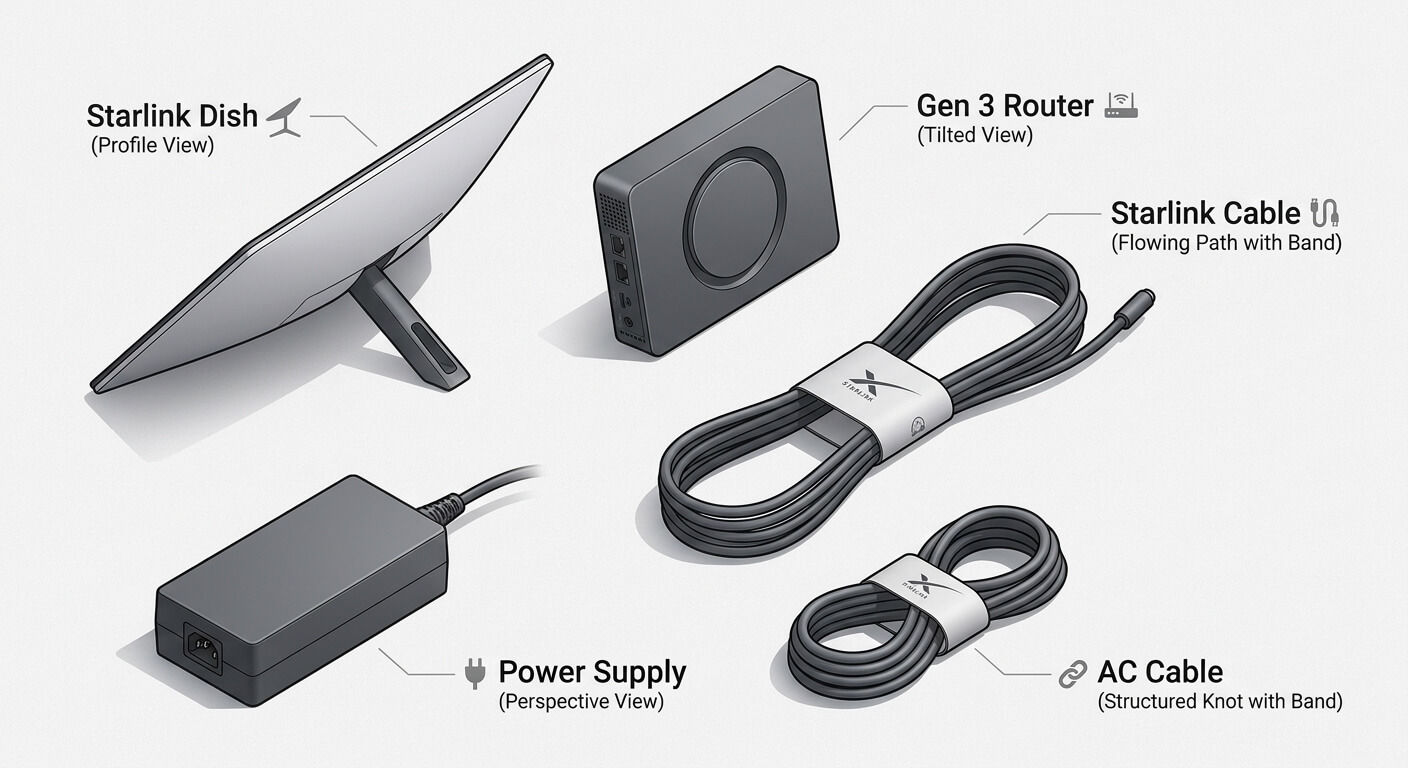
Here’s what’s included in the Starlink Gen 3 Installation Kit that comes with all standard residential plans:
- The Gen 3 Dish Antenna: A flat and compact rectangular device (12 x 21 inches) that weighs a little over 4lbs. It is motorized and self-orienting, so it will automatically establish a connection once powered on.
- Kickstand: A simple foldable mount made out of metal that is designed to hold your satellite dish upright on a flat surface; it may not be suitable for permanent placement.
- The Gen 3 Wi-Fi Router: A sleek, cutting-edge router that comes with Wi-Fi 6 capabilities and Power over Ethernet (PoE) technology.
- Starlink Cable: A special cable that is used to connect your antenna dish to the router; it is roughly 23 meters (75 ft) long and cannot be replaced with an ordinary Ethernet cable.
- Power Supply Unit: Hardware that connects to your router to convert high-voltage alternating current (AC) from an electricity outlet to low-voltage direct current (DC).
- AC Power Cable: Standard power cable to connect the router to an electricity outlet in your home.
Step 1: Check for Obstructions
The dish antenna mounted on your home requires a clear view of the sky. Even minor obstructions like a tree branch or any building structure (such as a chimney) can disrupt the line of sight and interrupt service.
The best time to check for obstructions is before placing your order, and here’s how you do it right:
- Download the on your smartphone.
- Navigate to the “Check for Obstructions” tool.
- Find a suitable spot for dish installation and stand there while holding your phone camera up towards the sky.
- Use the camera to scan the surrounding area and check for potential hindrances.
- The app will identify and highlight obstructions in red; if the percentage of obstruction shown in the app is between 5-10% or higher, look for another spot.
- When you find a spot with zero obstruction (or at least less than 5%), your work is done.
P.S. Scan for obstructions from multiple spots and varying heights to find the optimal location for installing your dish antenna.
Step 2: Choose Your Mounting Spot & Mount Type
If you want to set up your dish antenna once and then forget about it, strong and precise mounting is the key. Choosing the right mounting location and equipment ensures long-term stability and less maintenance.
The right type of mount and mounting spot for you depends on your living situation. You have to consider weather patterns and surrounding foliage/building structures among other things.
| Mount Type | Best For | Stability Level | Ease of Installation |
|---|---|---|---|
| Ground/Kickstand | Mobile homes/RVs, temporary campsites, etc. | Low to Moderate (dish can easily be displaced by weather impact) | High (No tools required) |
| Pole Mount | Homes in open spaces, remote/isolated buildings, high-wind areas | Moderate to High | Moderate |
| Wall Mount | Houses with a wall having an unobstructed view of the north sky | High | Moderate |
| Roof Mount | Standard homes with easily accessible roofs | Maximum | Low (Requires drilling & sealing) |
Step 3: Mount the Dish (Ground vs. Pole vs. Roof vs. Wall)
Once you’ve determined the type of mount and mounting location best suited to your home, you can get started with installing the hardware.
For Ground Setup:
- Fix the kickstand to the base of your dish antenna.
- Place it on a flat and stable surface.
- Steer clear of tall grass, puddles, or any other towering structures.
For Pole Mount:
- Select a thick and galvanized steel pipe with a concrete base for maximum durability.
- Sink the concrete base (cube) about 2-3 feet into the ground to maximize resistance against strong winds.
- Choose a suitable height for mounting (ideally between 6 – 12 feet) and secure the dish at the top with bolts.
For Wall or Roof Mount:
- Choose a stable and solid surface to drill holes (wood, brick mortar, or concrete is ideal)
- Use heavy-duty screws and seal the holes with silicone or another water-proof material to prevent water damage or wood rot.
- Secure the dish in place in a way that it can still be rotated or adjusted if required later.
Step 4: Route the Cable
The 75 ftStarlink cable runs from the external antenna to the router inside your home; unfortunately, it is often mishandled. A sharp bend or too much weight/pressure on the cable can permanently damage its conductors.
Here’s how you can safely route the cable:
- Use cable clips and raceways to neatly line the cable along a wall and protect it from wear and tear due to UV rays, moisture, abrasion, etc.
- Leave a small "service drip loop" where the cable transitions from outdoors to indoors; this helps keep the moisture out rather than seeping into the drilled hole/point of entry.
- If the provided cable isn’t long enough to cover the distance between your dish and router, you’ll have to order an extension cable (150 ft) from Starlink; third-party cables may cause incompatibility issues.
Step 5: Connect Power & Router
After the dish has been mounted and the Starlink cable has been safely routed to your router, the hard part is over. Follow these steps to establish a connection for the very first time:
- Connect the incoming Starlink cable to the labelled port on your router; you will hear a small “click” when the connector is locked in.
- Plug your router into the nearest electricity outlet using the provided power supply and cable.
- With your dish physically mounted and the cable routed indoors, you are ready to link the hardware components.
- Once the router is powered on, give it about five minutes to complete the booting process; don’t touch or move the dish while the router is booting.
- Open the Starlink app and check the real-time status of your connection; the dish may take up to 15 more minutes to scan for satellites and establish a connection.
- Do another obstruction check from the app’s built-in tool once you’re officially online.
- You may adjust the position of the dish antenna if the app shows any significant obstructions.
Not sure if your router is working properly?
Step 6: App Setup, Alignment & Wi-Fi
Now all that’s left to do is configure your home Wi-Fi network and connect all your devices. The procedure is similar to how you do it with other conventional broadband connections.
- Open the Starlink app, go to “Settings” and select “Wi-Fi”.
- Choose a name for your home Wi-Fi network and set a strong password.
- You can use the app to monitor activity and performance data; also enable notifications for service outages.
Step 7: Update Firmware & Run a Speed Test
Checking for firmware updates and running speed tests regularly is highly recommended to ensure optimum network performance.
If you notice any sudden speed drops and connectivity issues, you should follow up with an “obstruction check”. If everything is clear and there are no outage notifications, check for issues within your home network.
Advanced: Bypass Mode & a Third-Party/Mesh Router
If you need your Starlink connection to provide seamless connectivity across a large house or area that exceeds its Wi-Fi range, you may have to consider bypass mode and a third-party mesh system.
- Open the Starlink app, navigate to Settings, tap on Advanced, and toggle Bypass Mode to ON.
- Use the secondary Ethernet port on your Gen 3 router to connect it to the WAN port of the third-party router.
- Run a power cycle to activate the third-party router and configure its Wi-Fi network.
Are you looking for ways to improve Wi-Fi coverage and performance at your place?

Troubleshooting Post-Installation Problems
If you encounter unexpected errors, performance issues, or service interruptions after completing the setup, work through these troubleshooting steps:
- Look out for service outage notifications to rule out problems from the provider’s side.
- Check that your router is powered on and that the lights look fine.
- Unplug the router and then reboot it after a minute.
- If the problem persists, go to the Starlink app and check for obstructions.
- Adjust the dish angle to bypass the obstruction (if applicable).
- When nothing works, contact for guidance.

Do you want to explore other internet options before committing to Starlink?
FAQs
Is Starlink hard to install yourself?
Starlink hardware is designed in a way that allows users to install it themselves. However, the process can be challenging, depending on the location and layout of your home.
How long does it take to set up Starlink?
Between mounting the dish, running cables, and configuring the Wi-Fi network, Starlink installation and setup can take up to a few hours.
Do I need a clear view of the sky for Starlink?
Yes, your Starlink dish antenna needs a clear view of the sky. Even a 5 – 10% obstruction can significantly affect performance.
Which direction should a Starlink dish face?
The correct direction for your Starlink dish face depends on where you live. For most U.S. households, facing the dish towards north or north-west works best.
Can I mount Starlink on my roof myself?
Yes, Starlink internet kits are user-friendly and ideal for a DIY project. However, proper mounting on the roof may require some tools and technical knowledge. You can always look up online tutorials for more detailed guidance.
Do I need tools to install Starlink?
Typically, temporary or mobile setups do not require any tools. However, permanent dish setups on a roof or wall do require some basic tools like a drill, wrench, and sealant.
How do I use my own router with Starlink?
You can enable “Bypass Mode” from your Starlink app and connect a third-party router via Ethernet.


